The Custom Wizard plugin now has a “Realtime Validations” feature.
Similar Topics
It is an implementation of the Your topic is similar to... Composer Dialog for Custom Wizard, especially when using the Text field to create a topic.
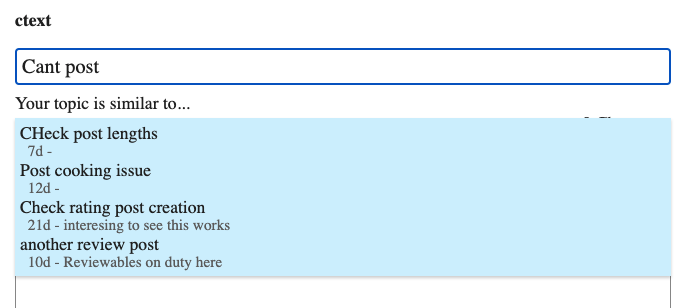
Steps to Enable
- In the wizard admin settings, choose the field type
Text. - Click on the
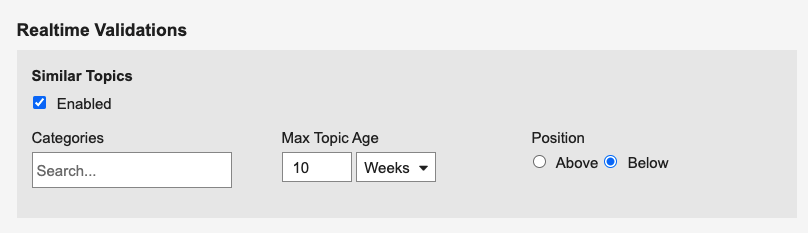
Advancedbutton, You’ll see a new section calledRealtime Validations.
- The
Categoriessetting allows to restrict which categories should be used to look for similar topics. If left unchanged, the topics will be looked up from all categories visible to the user. Max Topic Agesetting allows specifying the max age of the topics being looked for. By default, all the topics visible to the user will be looked up.Positionis used to specify whether the dialog should appear Above or Below the field in the wizard.
Notes
The displaying of similar topics depends on these site settings. These apply both to the composer and the Similar Topics validation.
min title similar length: Minimum characters a user needs to enter before the topics are looked up.max similar results: Maximum number of similar topics that will be displayed.minimum topics similar: Minimum number of topics that should be present on the site before the similar topics are displayed.
Developer Notes
-
A validation message is shown below the text field when the Similar Topics validation is enabled.
-
The validator has a few states, and each state pertains to a unique a css class and validation message.
State CSS Class Message Translation Key Initial - - Typing similar-topics-default realtime_validations.similar_topics.default Typing(when categories set) similar-topics-default-categories realtime_validations.similar_topics.default_categories No Results similar-topics-no-results realtime_validations.similar_topics.no_results Results Found similar-topics-results realtime_validations.similar_topics.results Loading similar-topics-loading realtime_validations.similar_topics.loading Results Minimized similar-topics-show realtime_validations.similar_topics.show
Answer Validation
Requires the user’s input to match a configured expected answer before they can proceed. If the value doesn’t match, the step does not advance and the field shows an error, which is useful for quiz- or knowledge-check-style wizards.
Unlike Similar Topics, this validation is enforced server-side on step submission, not as the user types. The expected answer is never included in the wizard payload sent to the browser, so it cannot be discovered by inspecting the page.
Steps to Enable
- Add or select a Text or Dropdown field.
- Click Advanced.
- Under Validations, enable Answer.
- Configure:
- Expected answer: the value the field must match. For Dropdown fields, enter the option’s stored value, not its display label.
- Match: Exact (default, case-sensitive) or Case insensitive.
- Error message: optional. Shown when the answer is incorrect; falls back to the default message if blank.
Notes
- Leading/trailing whitespace is ignored on both the expected and submitted value.
- An empty value is not treated as a wrong answer. Emptiness is handled by the field’s Required setting, so enable Required if the field must be answered.
